

Introduction
If you’re experiencing a WordPress error while editing posts or simply prefer the older WordPress interface, you may want to Disable Gutenberg Block Editor and enable the Classic Editor instead.
The Gutenberg editor is WordPress’s default block-based editor, but not every website owner prefers working with blocks. Some users find the Classic Editor faster and easier, especially when managing older websites or existing content.
In this guide, you’ll learn 7 safe ways to Disable Gutenberg Block Editor and bring back the Classic Editor. We’ll cover plugins, custom code, child themes, troubleshooting, and safe testing methods.
We’ll also explain how keeping your WordPress installation updated can help you Secure Your WordPress Site against vulnerabilities and reduce the risk of problems caused by outdated plugins or themes.
What Is the Gutenberg Block Editor?
Gutenberg is the modern block-based editing system built into WordPress.
Instead of using one large text editor, Gutenberg divides your content into individual blocks.
For example:
- Paragraph blocks
- Heading blocks
- Image blocks
- Video blocks
- List blocks
- Button blocks
- Columns
- Embeds
- Custom HTML
Each block can be edited and arranged independently.
This system gives WordPress users more flexibility when creating modern page layouts.
However, some website owners still prefer the simpler Classic Editor interface.
Why Disable Gutenberg Block Editor?
There are several reasons why someone may want to Disable Gutenberg Block Editor.
You may prefer the Classic Editor because:
- You’re familiar with the older interface.
- Your team was trained on the Classic Editor.
- Your website uses older plugins.
- Existing content works better with the Classic Editor.
- You manage a large amount of legacy content.
- You prefer a simpler writing interface.
- Gutenberg causes compatibility problems with an older plugin.
- You’re experiencing an error WordPress displays while editing.
Some websites also use custom workflows that were designed around the Classic Editor.
If Gutenberg is causing a genuine compatibility issue, switching temporarily to the Classic Editor can help determine whether the editor is responsible.
Before You Disable Gutenberg
Before making any WordPress change, create a complete backup.
A backup should include:
- WordPress database
- Website files
- Themes
- Plugins
- Media uploads
- Configuration files
If something goes wrong, you can restore the previous version.
Internal Link:
Backup Your WordPress Site: 7 Free Automatic Methods
It’s also a good idea to test changes on a staging website if your hosting provider supports staging.
This is especially important if your website is receiving visitors, generating leads, or processing orders.
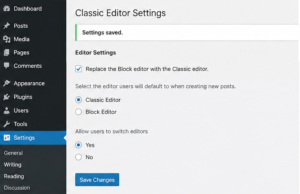
Method 1: Disable Gutenberg Block Editor Using Classic Editor Plugin
The easiest method is to use the official Classic Editor plugin.
Go to:
WordPress Dashboard → Plugins → Add New
Search for:
Classic Editor
Install and activate the plugin.
After activation, WordPress can return to the traditional editing interface.
Go to:
Settings → Writing
Look for the Classic Editor settings.
Depending on your configuration, you can choose whether users should:
- Always use the Classic Editor
- Always use Gutenberg
- Switch between editors
For a website that wants to completely Disable Gutenberg Block Editor, select the Classic Editor option for all users.
Why This Method Is Recommended
The plugin method is usually easier for beginners because you don’t need to edit PHP files manually.
You can also disable the plugin later if you want to return to Gutenberg.
External DoFollow Link:
Classic Editor – WordPress.org
Method 2: Disable Gutenberg Block Editor Using Custom Code
If you don’t want to install another plugin, you can use PHP code.
This method is particularly useful when you are comfortable working with WordPress custom code.
Add the following code to your child theme’s functions.php file or use a reputable snippets manager:
function wpwitharb_disable_gutenberg() {
    return false;
}

add_filter( 'use_block_editor_for_post', 'wpwitharb_disable_gutenberg', 10 );
This tells WordPress not to use the block editor for posts.
If you also want to disable the block editor for pages, use:
function wpwitharb_disable_gutenberg_pages( $use_block_editor, $post ) {
    return false;
}

add_filter( 'use_block_editor_for_post', 'wpwitharb_disable_gutenberg_pages', 10, 2 );
Test the code carefully before using it on a production website.
A PHP syntax error can cause a critical WordPress error.
Internal Link:
How to Add Custom Code Snippets in WordPress functions.php
Method 3: Disable Gutenberg Only for Specific Post Types
You may not want to remove Gutenberg from your entire website.
Instead, you can disable it for a specific post type.
For example, you can use:
function wpwitharb_disable_gutenberg_for_posts( $use_block_editor, $post ) {
    if ( 'post' === $post->post_type ) {
        return false;
    }

    return $use_block_editor;
}

add_filter( 'use_block_editor_for_post', 'wpwitharb_disable_gutenberg_for_posts', 10, 2 );
This allows you to keep Gutenberg available for other content types.
This approach is useful if:
- Blog posts need Classic Editor.
- Pages still use Gutenberg.
- Custom post types require blocks.
- Different editors are needed by different teams.
Always test custom code before applying it to your live website.
Method 4: Disable Gutenberg for Specific Users
Some websites have multiple authors.
You may want administrators or developers to continue using Gutenberg while allowing other writers to use the Classic Editor.
In that situation, a user-specific approach can be useful.
However, user-role-based editor customization should be implemented carefully.
Before adding custom PHP code, determine:
- Which users need Classic Editor?
- Which users need Gutenberg?
- Which post types are affected?
- Should administrators keep access to Gutenberg?
If your website has many authors, the Classic Editor plugin can make this management easier.
Method 5: Use the Classic Editor for Existing Content
If you have hundreds of older posts, you may not want to convert everything to Gutenberg.
The Classic Editor can help you continue managing existing content using the traditional interface.
This can be especially helpful for websites that were created before Gutenberg became the default WordPress editor.
Before changing your editing workflow, test several old posts.
Check:
- Text formatting
- Images
- Shortcodes
- Tables
- Custom HTML
- SEO metadata
- Internal links
If everything displays correctly, you can continue using the Classic Editor workflow.
Method 6: Check Plugin Compatibility
Sometimes the reason users want to Disable Gutenberg Block Editor is because a plugin behaves incorrectly inside Gutenberg.
Before disabling Gutenberg permanently, identify the plugin responsible for the problem.
Temporarily deactivate recently installed or updated plugins.
Then test the editor.
If the problem disappears, you may have found a plugin conflict.
Common plugin categories that can affect editing include:
- Page builders
- SEO plugins
- Custom fields plugins
- WooCommerce extensions
- Shortcode plugins
- Security plugins
- Custom admin plugins
If you experience an error WordPress displays only while editing, plugin compatibility should be one of your first checks.
Method 7: Check Your WordPress and PHP Versions
Outdated WordPress, plugins, themes, or PHP versions can create compatibility problems.
Before changing the editor, make sure your website is reasonably up to date.
Check:
Dashboard → Updates
Update:
- WordPress
- Plugins
- Themes
Also check your hosting control panel for the PHP version.
Don’t update everything blindly on a live website.
Create a backup first and test major changes on staging whenever possible.
Keeping WordPress and its components updated can also help you Secure Your WordPress Site against known vulnerabilities.
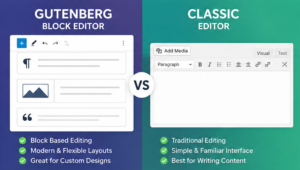
Gutenberg vs Classic Editor
| Feature | Gutenberg | Classic Editor |
|---|---|---|
| Block-based editing | Yes | No |
| Traditional editor | No | Yes |
| Modern layouts | Excellent | Limited |
| Simple text editing | Good | Excellent |
| Legacy content workflow | Can require adjustments | Familiar |
| Custom blocks | Yes | No |
| Best for older workflows | Sometimes | Often |
Neither editor is automatically better for every website.
Choose the editing experience that works best for your content and workflow.
Important Security Considerations
Disabling Gutenberg itself does not automatically make your website more secure or less secure.
Security depends on your overall WordPress configuration.
If your goal is to Secure Your WordPress Site, focus on:
- Keeping WordPress updated
- Using trusted plugins
- Removing unused plugins
- Using strong passwords
- Enabling two-factor authentication
- Creating regular backups
- Limiting administrator accounts
- Using a reputable hosting provider
- Monitoring suspicious activity
Never install a random “Classic Editor” plugin from an unknown source just to
.
Use trusted plugin sources and review the plugin’s reputation before installation.
If a hacker gains access to your administrator account, changing the editor will not protect your website.
What If Disabling Gutenberg Does Not Fix the Error?
If you are trying to Disable Gutenberg Block Editor because of a WordPress error and the problem continues, Gutenberg may not be the actual cause.
Check:
- Plugin conflicts
- Theme conflicts
- PHP errors
- Browser cache
- JavaScript errors
- Outdated plugins
- WordPress version
- Server configuration
Try opening the editor in a private browser window.
If the error disappears there, clear your browser cache and cookies.
Troubleshooting Gutenberg and Classic Editor Problems
If you followed the methods in Part 1 but still experience problems, use the following troubleshooting steps.
Fix 1: Disable Plugins One by One
A plugin conflict can sometimes look like a Gutenberg problem.
Go to:
Plugins → Installed Plugins
Temporarily deactivate recently installed or updated plugins.
Then test the editor.
If the problem disappears, reactivate the plugins one at a time.
This allows you to identify the plugin causing the conflict.
If you cannot access the WordPress Dashboard, you can deactivate plugins using your hosting File Manager or FTP.
Navigate to:
public_html/wp-content/plugins/Rename the suspected plugin folder.
For example:
example-plugincan temporarily become:
example-plugin-disabledWordPress will stop loading that plugin.
Fix 2: Switch to a Default WordPress Theme
Your active theme may be causing an editor conflict.
Temporarily activate a default WordPress theme such as:
- Twenty Twenty-Five
- Twenty Twenty-Four
- Twenty Twenty-Three
Then open the editor.
If the problem disappears, your theme may be responsible.
Check for:
- Theme updates
- Custom functions
- Child theme code
- Page-builder integration
- Editor customizations
If you’re using custom PHP code, review recent changes carefully.
Internal Link:
How to Add Custom Code Snippets in WordPress functions.php
Fix 3: Clear Browser Cache
Your browser can sometimes store outdated JavaScript or editor files.
Try opening WordPress in:
- Chrome Incognito
- Firefox Private Window
- Another browser
- Another device
If Gutenberg or the Classic Editor works correctly there, clear the cache in your normal browser.
You can also perform a hard refresh:
Ctrl + F5on Windows.
On Mac:
Command + Shift + RThen test the editor again.
Fix 4: Check Browser JavaScript Errors
Gutenberg relies heavily on JavaScript.
A JavaScript conflict can cause:
- Blank editor screen
- Loading problems
- Missing blocks
- Buttons not responding
- Editor crashes
- Saving failures
To investigate, open your browser’s developer tools.
In Chrome:
Right-click → Inspect → Console
Look for red error messages.
If the errors mention a plugin or theme JavaScript file, that may identify the source of the problem.
Do not edit JavaScript files randomly.
First identify which plugin or theme is generating the error.
Fix 5: Check WordPress Recovery Mode
If custom code causes a critical error, WordPress may provide a recovery mode link through the administrator email address.
Recovery Mode can help you access the dashboard and deactivate the problematic plugin or theme.
If you recently added code to functions.php, that code should be one of the first things you investigate.
Never remove the entire functions.php file.
Instead, restore your backup or remove only the code you recently added.
Fix 6: Check PHP Error Logs
If you still cannot determine why the editor is failing, check your hosting error logs.
Look for messages mentioning:
- PHP Fatal error
- Syntax error
- Undefined function
- Memory errors
- Plugin paths
- Theme paths
The exact error message often identifies the file causing the problem.
If you don’t understand the log, send the relevant error to your hosting provider or developer rather than making random changes.
Fix 7: Keep WordPress Updated
Whether you use Gutenberg or the Classic Editor, maintaining an updated WordPress installation is important.
Updates can include:
- Security fixes
- Bug fixes
- Performance improvements
- Compatibility improvements
If your website runs outdated software, it may be easier for a hacker to exploit known vulnerabilities.
To Secure Your WordPress Site, regularly review:
- WordPress core updates
- Plugin updates
- Theme updates
- PHP version
- User accounts
- Backup status
Only download WordPress plugins and themes from trusted sources.
How to Safely Return to Gutenberg
If you later decide to use Gutenberg again, the process is simple.
If you used the Classic Editor plugin:
- Go to Plugins → Installed Plugins.
- Find Classic Editor.
- Deactivate it.
- Create a new post.
- Confirm that Gutenberg loads.
If you used custom code, remove or disable the relevant snippet.
Always test your existing posts after switching editors.
Some content may behave differently depending on how it was originally created.
How to Choose Between Gutenberg and Classic Editor
Use Gutenberg if:
- You want modern block-based editing.
- You use block patterns.
- You build flexible page layouts.
- Your plugins are optimized for blocks.
- You want to use newer WordPress editing features.
Use Classic Editor if:
- You prefer the traditional interface.
- Your team works better with the old editor.
- Your workflow depends on legacy content.
- A specific compatibility problem requires it.
- You don’t need block-based editing.
You can also use both depending on your website’s requirements.
Common Mistakes to Avoid
Avoid these mistakes when you Disable Gutenberg Block Editor:
- Installing an untrusted Classic Editor plugin.
- Editing
functions.phpwithout a backup. - Copying PHP code without understanding it.
- Forgetting to test custom code.
- Disabling every plugin at once without identifying the conflict.
- Ignoring JavaScript errors.
- Using outdated WordPress software.
- Downloading themes or plugins from suspicious websites.
- Giving administrator access to unknown users.
- Assuming Gutenberg is responsible for every WordPress error.
- Making changes directly on a busy production website.
If your goal is to Secure Your WordPress Site, remember that editor choice is only one small part of overall WordPress security.
Frequently Asked Questions
Can I completely Disable Gutenberg Block Editor?
Yes. You can use the Classic Editor plugin or custom PHP code to disable the block editor.
The plugin method is generally easier for beginners, while custom code can be useful if you want more control.
Is Classic Editor safer than Gutenberg?
Not necessarily.
Both editors can be used safely when WordPress, plugins, and themes are properly maintained.
Security depends much more on updates, trusted software, strong authentication, backups, and proper permissions.
Will disabling Gutenberg delete my posts?
No.
Switching from Gutenberg to Classic Editor does not normally delete your posts.
However, you should always create a backup before changing your website’s editing system.
Can Gutenberg cause a WordPress error?
Gutenberg can be involved in compatibility issues, especially when a plugin or theme has an editor-related conflict.
However, not every WordPress error is caused by Gutenberg.
Always test plugins, themes, JavaScript, PHP, and WordPress versions before deciding that Gutenberg is the problem.
Can a hacker access my website because I use Gutenberg?
Using Gutenberg itself does not mean that a hacker can access your website.
Website security depends on the overall security of WordPress, plugins, themes, hosting, passwords, and administrator accounts.
How can I Secure My WordPress Site?
To Secure Your WordPress Site, keep WordPress and plugins updated, use strong passwords, enable two-factor authentication, remove unused plugins, create regular backups, and use trusted themes and plugins.
Helpful Resources
- WordPress Block Editor Documentation – https://wordpress.org/documentation/article/wordpress-block-editor/
- Classic Editor Plugin – https://wordpress.org/plugins/classic-editor/
- WordPress Developer Resources – https://developer.wordpress.org/
- WordPress Security – https://wordpress.org/documentation/article/hardening-wordpress/
- WordPress Debugging – https://wordpress.org/documentation/article/debugging-in-wordpress/
Related Articles
Continue learning with these WordPress guides:
- https://wpwitharb.com/add-custom-code-snippets/
- https://wpwitharb.com/backup-your-wordpress-site-7-free-automatic-methods/
- https://wpwitharb.com/secure-wordpress-site-from-hackers/
- https://wpwitharb.com/fix-too-many-redirects-error-wordpress/
- https://wpwitharb.com/500-internal-server-error-in-wordpress-step-by-step/
Final Thoughts
If you want to Disable Gutenberg Block Editor, you have several options ranging from the simple Classic Editor plugin to custom PHP code.
For beginners, the Classic Editor plugin is usually the easiest choice. Advanced users may prefer custom code because it provides greater control over which post types or users use Gutenberg.
Regardless of the method you choose, always create a backup before making changes and test your website afterward.
If you’re troubleshooting a WordPress error, don’t automatically assume Gutenberg is the cause. Plugin conflicts, themes, JavaScript errors, PHP problems, and outdated software can produce similar symptoms.
Finally, if your goal is to Secure Your WordPress Site, keep your WordPress installation updated, remove unused plugins, use strong authentication, maintain backups, and never download software from suspicious sources.
A properly maintained WordPress website is much easier to manage, troubleshoot, and protect from a hacker.