

Introduction
The Failed to Write File to Disk error is a common WordPress upload problem that usually appears when uploading images, videos, plugins, themes, or other media files. Instead of completing the upload, WordPress stops the process and displays an error message indicating that it cannot save the file.
From my experience managing WordPress websites on Hostinger and other hosting providers, this issue is typically caused by incorrect file permissions, insufficient disk space, temporary folder problems, or server configuration errors. In this guide, I’ll show you the exact steps I use to fix this error safely.
Table of Contents
- What Does “Failed to Write File to Disk” Mean?
- Why Does This Error Occur?
- Check Available Disk Space
- Verify Upload Folder Permissions
- Clear Temporary Files
- Check PHP Temporary Directory
- FAQs
- Final Thoughts
What Does “Failed to Write File to Disk” Mean?
When you upload a file, WordPress first stores it in a temporary directory before moving it to the wp-content/uploads folder.
If PHP cannot access the temporary folder or write files into the uploads directory, WordPress displays the Failed to Write File to Disk error.
Common Causes
This error is usually caused by one or more of the following:
- Incorrect file permissions
- Full hosting storage
- Missing temporary folder
- Incorrect PHP configuration
- Plugin conflicts
- Security plugins blocking uploads
- Corrupted
.htaccess - Server permission issues
Understanding the cause makes troubleshooting much easier.
Fix 1: Check Your Hosting Disk Space
One of the simplest causes is running out of available storage.
For Hostinger users:
- Log in to Hostinger hPanel
- Open Hosting → Manage
- Navigate to Usage or Disk Usage
- Check the available storage
If your storage is nearly full:
- Delete unused backups
- Remove old themes
- Delete unused plugins
- Optimize your media library
- Empty the Trash
Freeing up space often resolves the problem immediately.
Fix 2: Verify Upload Folder Permissions
Incorrect permissions on the uploads directory prevent WordPress from saving files.
Open:
wp-content/uploads/Recommended permissions:
Folders
755Files
644Never set permissions to 777, as this creates serious security risks.
If you’re using Hostinger:
- Open File Manager
- Navigate to public_html/wp-content/uploads
- Right-click the folder
- Select Permissions
- Apply 755

Fix 3: Clear Temporary Files
Sometimes the server’s temporary directory becomes full.
Restarting PHP or clearing temporary files usually fixes the issue.
If you’re using shared hosting, contact your hosting provider and ask them to clear the PHP temporary directory.
Fix 4: Check the PHP Temporary Directory
PHP requires a writable temporary folder.
You can verify this using:
Tools → Site Health → Info → Server
or create a temporary:
<?php phpinfo(); ?>Search for:
upload_tmp_dirIf it’s empty or points to a missing directory, contact your hosting provider.
Internal Link:
https://wpwitharb.com/increase-php-memory-limit/
Fix 5: Disable Plugins to Check for Conflicts
Sometimes a recently installed plugin prevents WordPress from writing files to the server.
To test for plugin conflicts:
- Go to Plugins → Installed Plugins
- Deactivate all plugins.
- Try uploading an image.
- If the upload works, reactivate plugins one at a time.
- Identify the plugin causing the issue.
Plugins that commonly cause upload errors include:
- Security plugins
- Firewall plugins
- Media optimization plugins
- Backup plugins
- File manager plugins
After finding the conflicting plugin, update it or contact the developer.
Internal Link:
https://wpwitharb.com/elementor-stuck-on-loading-screen/
Fix 6: Temporarily Disable Security Plugins
Security plugins sometimes block file uploads as a protective measure.
Temporarily disable plugins such as:
- Wordfence
- Sucuri
- All In One WP Security
- iThemes Security
After disabling the plugin:
- Clear the cache.
- Upload a file.
- If the upload succeeds, review the plugin’s firewall or upload protection settings.
Never leave your security plugin disabled permanently.
Fix 7: Repair the .htaccess File
A corrupted .htaccess file can interfere with uploads.
Step 1
Open your WordPress root directory.
Rename:
.htaccessto
.htaccess-oldStep 2
Log in to WordPress.
Go to:
Settings → Permalinks
Without changing anything, click:
Save Changes
WordPress automatically generates a fresh .htaccess file.
Now test uploading a file again.
Internal Link:
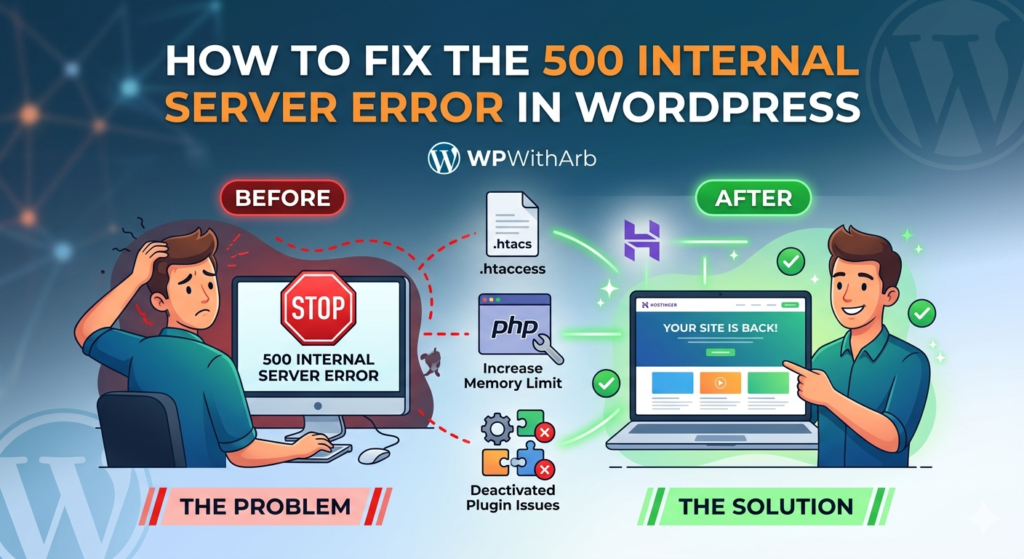
https://wpwitharb.com/how-to-fix-500-internal-server-error-in-wordpress/

Fix 8: Verify File Ownership
On VPS or dedicated hosting, incorrect file ownership may prevent PHP from writing files.
Recommended ownership:
Files → Website User
Folders → Website User
If you’re unsure how to change ownership, ask your hosting provider for assistance.
Incorrect ownership often causes upload failures even when permissions appear correct.
Fix 9: Contact Your Hosting Provider
If you’ve tried every solution and the error persists, the problem may be server-related.
Ask your hosting support team to check:
- Disk quota
- File permissions
- Temporary upload directory
- PHP configuration
- File ownership
- Server logs
- Security restrictions
Hostinger’s support team can usually identify the issue within minutes.
External DoFollow Link:
https://support.hostinger.com/
Verify That the Problem Is Fixed
After applying a solution:
- Upload an image.
- Upload a PDF.
- Install a plugin.
- Upload a theme ZIP file.
- Check the Media Library.
If all uploads work correctly, the issue has been resolved.
Best Practices to Prevent Upload Errors
Follow these recommendations to avoid future upload issues:
- Keep WordPress updated.
- Update themes and plugins regularly.
- Monitor disk usage.
- Remove unused plugins.
- Delete unnecessary backups.
- Use optimized image sizes.
- Check folder permissions after migrations.
- Keep PHP updated.
These habits help maintain a healthy WordPress installation.
Internal Link:
https://wpwitharb.com/how-to-speed-up-your-wordpress-website-using-litespeed-cache/
Common Mistakes to Avoid
Many beginners accidentally make troubleshooting harder.
Avoid these mistakes:
- Setting folder permissions to 777
- Editing system files without a backup
- Ignoring hosting storage limits
- Leaving the
phpinfo()file on the server - Installing multiple security plugins
- Running multiple caching plugins
A simple and methodical troubleshooting process is usually the fastest way to solve the problem.
Frequently Asked Questions
Why does WordPress say “Failed to Write File to Disk”?
This usually happens because WordPress cannot save uploaded files due to incorrect permissions, insufficient storage, missing temporary folders, or server configuration problems.
Can low disk space cause this error?
Yes. If your hosting account has little or no free storage available, WordPress won’t be able to upload new files.
Is changing folder permissions safe?
Yes, when using the recommended values:
- Folders: 755
- Files: 644
Avoid using 777, as it introduces serious security risks.
Should I contact my hosting provider?
If you’ve checked permissions, storage, plugins, and temporary directories without success, contacting your hosting provider is the next best step.
Related Articles
Continue learning with these guides:
- https://wpwitharb.com/
- https://wpwitharb.com/wordpress-white-screen-of-death/
- https://wpwitharb.com/wordpress-cache-plugins/
- https://wpwitharb.com/error-establishing-a-database-connection/
- https://wpwitharb.com/secure-wordpress-site-from-hackers/
Final Thoughts
The Failed to Write File to Disk error is usually caused by permission issues, insufficient storage, server configuration problems, or plugin conflicts. Fortunately, these issues can often be resolved with a few simple checks, such as verifying folder permissions, clearing temporary files, repairing the .htaccess file, and reviewing your hosting settings.
Regular WordPress maintenance, proper file permissions, and monitoring your hosting resources will reduce the chances of this error occurring again and help keep your website running smoothly.