

Introduction
Few issues are as frustrating for webmasters as encountering the 403 Forbidden Error in WordPress. This HTTP status code indicates that your web server understands your request, but explicitly refuses to grant access to the requested page or administrative resource. Whether locked out of your wp-admin area or witnessing entire site pages return access denied, immediate action is required.
Resolving the 403 Forbidden Error in WordPress quickly is critical to prevent downtime and preserve your search engine indexation. In this detailed technical walkthrough, we will unpack the root causes behind access restrictions and present 7 proven solutions to regain full site control.
Understanding the Root Cause of the 403 Forbidden Error in WordPress
The 403 Forbidden Error in WordPress is typically triggered when server-level security rules or file system permissions misconfigure, blocking the web server from reading requested files.
The most common technical culprits include:
- Corrupted .htaccess File: Faulty server directives or bad rewrite rules generated by security or caching plugins.
- Incorrect File and Directory Permissions: File permission flags preventing Nginx or Apache from reading files.
- Misconfigured Security Plugins: Overly strict firewall rules or IP blocking mechanisms triggering false positives.
- Missing Index File: Absence of an index.php or index.html file in directory structures.
- CDN or Hotlink Protection Rules: Cloudflare or cPanel hotlink settings improperly blocking legitimate internal requests.
To learn more about server responses and HTTP status standards, explore our guide on [Internal Link: Common HTTP Status Codes and WordPress Troubleshooting – HTTP Status Codes Guide].
Tutorials Hub (Homepage): WPWithARB Tutorials Hub
Step 1: Regenerate a Clean .htaccess File
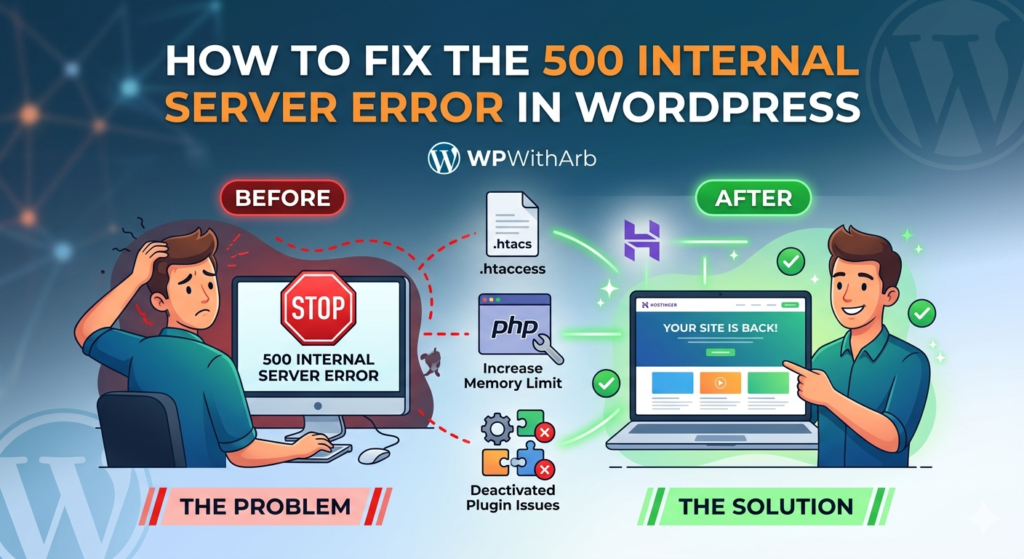
A corrupted .htaccess file is the single most common cause of the 403 Forbidden Error in WordPress. Rogue security plugins or failed update scripts frequently corrupt this critical server configuration file.
Follow these steps to replace your corrupt file with a fresh default:
- Connect to your server using FTP or cPanel File Manager.
- Locate the .htaccess file in the root public_html directory.
- Download a backup copy to your local machine, then delete .htaccess from the server.
- Refresh your website. If the 403 error disappears, navigate to Settings > Permalinks in WordPress admin and click ‘Save Changes’ to auto-generate a clean file.
If creating the file manually, paste this standard default WordPress rewrite block:
| # BEGIN WordPress <IfModule mod_rewrite.c> RewriteEngine On RewriteRule ^index\.php$ – [L] RewriteCond %{REQUEST_FILENAME} !-f RewriteCond %{REQUEST_FILENAME} !-d RewriteRule . /index.php [L] </IfModule> # END WordPress |
For official Apache rewrite documentation, refer to [External Link: WordPress.org – Official htaccess Specification for WordPress].
Step 2: Reset File and Directory Permissions
Improper directory or file permissions will immediately trigger a 403 Forbidden Error in WordPress. Servers require precise numerical permission codes to read and execute server scripts securely.
| 📌 SECURITY PERMISSION STANDARDS Standard WordPress Permissions Rules: • All Directories must be set to 755 or 750 • All Files must be set to 644 or 640 • wp-config.php should be set to 600 or 644 |
To reset permissions recursively using FileZilla or FTP:
- Right-click the public_html directory and select File Permissions.
- Set Numeric Value to 755, select Recurse into subdirectories, and check Apply to directories only.
- Next, right-click public_html again, set Numeric Value to 644, select Recurse into subdirectories, and check Apply to files only.
Step 3: Temporarily Deactivate WordPress Plugins
Security and firewall plugins (such as Wordfence, iThemes Security, or All In One Security) can trigger false positives, leading to a 403 Forbidden Error in WordPress.
To isolate plugin conflicts quickly:
- Access your site via FTP and navigate to wp-content/.
- Rename the plugins directory to plugins_deactivated.
- Check if your site loads. If fixed, restore the folder name and reactivate plugins individually to locate the misconfigured security tool.
Learn more about secure configuration in our dedicated tutorial on [Internal Link: How to Secure WordPress Against Common Vulnerabilities – Security Hardening Guide].
HTTP Status Guide: WPWithARB Common HTTP Status Codes
Step 4: Verify the Presence of an Index File
If your web server is configured to prevent directory browsing and lacks an index.php or index.html file in the root folder, it will return a 403 Forbidden Error in WordPress.
Check your root folder via FTP to verify that index.php exists. If missing, create a blank index.php file and paste the default entry code:
| <?php // Silence is golden. define( ‘WP_USE_THEMES’, true ); require( __DIR__ . ‘/wp-blog-header.php’ ); |
Step 5: Deactivate CDN and Web Application Firewall (WAF) Rules
Cloudflare and third-party Web Application Firewalls can accidentally flag legitimate IP addresses, triggering a 403 Forbidden Error in WordPress.
To troubleshoot CDN blocks:
- Log into your Cloudflare or firewall dashboard.
- Temporarily pause Cloudflare or switch WAF mode to ‘Development / Bypass Mode’.
- Inspect Security Event Logs for blocked request IDs matching your public IP address.
Refer to official network security guidelines on [External Link: Web.dev – Modern Web Security and WAF Configuration Standards] for properly configuring edge firewall rules.
Step 6: Check Hotlink Protection Settings
Hotlink protection prevents other websites from embedding your hosted images directly. If improperly configured in cPanel or your host CDN, it can block your own domain from fetching media assets, outputting a 403 Forbidden Error in WordPress for media requests.
Access cPanel > Hotlink Protection, and ensure your site’s exact URLs (both HTTP and HTTPS) are explicitly whitelisted. For script runtime specifications, see [External Link: PHP.net – PHP Runtime and File System Permissions].
Step 7: Contact Your Hosting Provider
If all troubleshooting steps fail, the 403 Forbidden Error in WordPress may be caused by server-level access rules (such as ModSecurity filters or IP bans) enforced by your web hosting platform.
Contact your host’s support team and request a review of their Apache/Nginx error logs for your server account. Provide them with your public IP address and the exact timestamp of the 403 error.
Summary & Preventative Checklist
Resolving the 403 Forbidden Error in WordPress comes down to systematically verifying permissions, clearing rogue htaccess directives, and auditing security plugin rules.
By keeping server configurations clean and implementing proper file permissions, you can ensure your site stays online, secure, and fully accessible. For further technical maintenance guides, visit our [Internal Link: WordPress Server Optimization and Maintenance Blueprint – Maintenance Hub].
Security Hardening: How to Secure WordPress Against Vulnerabilities
Server Optimization: WordPress Server Optimization Blueprint