
Introduction
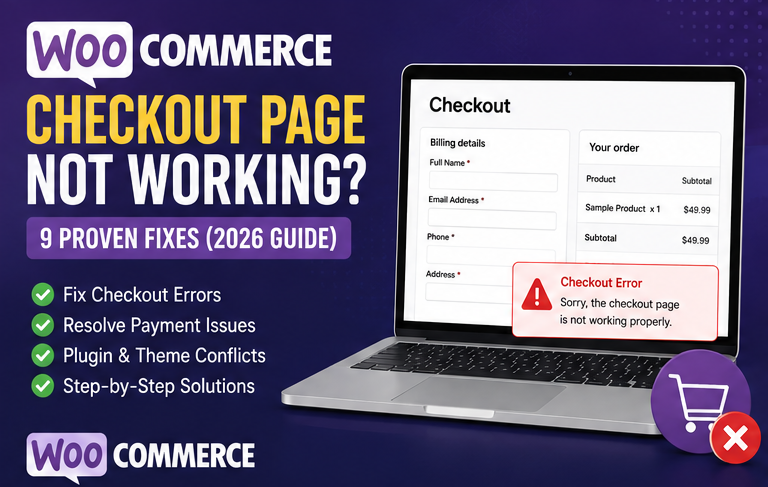
If your WooCommerce Checkout Page Not Working issue is preventing customers from completing purchases, you’re likely losing sales every minute the problem remains unresolved. Checkout errors can appear after plugin updates, theme changes, payment gateway issues, caching conflicts, or incorrect WooCommerce settings.
The good news is that most checkout problems can be fixed without rebuilding your online store. In this guide, I’ll walk you through the exact troubleshooting process I use to restore WooCommerce checkout pages quickly and safely.
Table of Contents
- Why WooCommerce Checkout Stops Working
- Common Symptoms
- Before You Start
- Fix 1: Update WooCommerce
- Fix 2: Disable Plugin Conflicts
- Fix 3: Switch to Default Theme
- Fix 4: Test Payment Gateway
- FAQs
- Final Thoughts
Why Does the WooCommerce Checkout Page Stop Working?
Several factors can prevent customers from completing checkout.
Common causes include:
- WooCommerce update conflicts
- Plugin incompatibility
- Theme issues
- JavaScript errors
- Payment gateway problems
- Cache plugins
- CDN conflicts
- Outdated PHP version
- Corrupted checkout page
Most stores experience one or more of these issues after updates.
Common Symptoms
You may notice:
- Checkout button doesn’t work
- Infinite loading spinner
- White screen
- Payment not processing
- “Place Order” button frozen
- AJAX errors
- Blank checkout page
- 500 Internal Server Error
Recognizing the symptom helps identify the correct fix.
Before You Start
Before making changes:
- Create a complete website backup.
- Update WordPress.
- Update WooCommerce.
- Backup your database.
- Enable maintenance mode if your store receives heavy traffic.
Never troubleshoot a live store without a recent backup.
Internal Link:
https://wpwitharb.com/backup-your-wordpress-site/
Fix 1: Update WooCommerce
Running outdated WooCommerce files often causes checkout issues.
Navigate to:
Dashboard → Updates
Update:
- WooCommerce
- WordPress
- Active Theme
- Plugins
After updating:
- Clear cache
- Test checkout again
External DoFollow Link
https://woocommerce.com/document/
Fix 2: Disable Plugin Conflicts
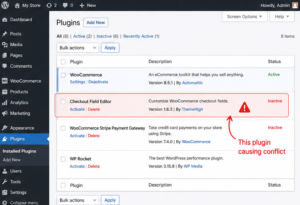
A plugin conflict is the most common reason for checkout failures.
Temporarily deactivate all plugins except:
- WooCommerce
Then:
Reactivate plugins one by one.
Test checkout after each activation.
When the issue returns, you’ve found the conflicting plugin.
Internal Link:
https://wpwitharb.com/deactivate-wordpress-plugins/
Fix 3: Switch to a Default WordPress Theme
Sometimes themes override WooCommerce templates incorrectly.
Temporarily activate:
- Twenty Twenty-Five
- Twenty Twenty-Four
Test checkout.
If checkout works, your current theme is causing the problem.
Update or replace the theme.
Fix 4: Test Your Payment Gateway
Payment gateways occasionally fail because of:
- Incorrect API keys
- Expired credentials
- Sandbox mode enabled
- Server communication issues
Disable the payment gateway.
Enable another gateway such as:
- Cash on Delivery
- Bank Transfer
Test checkout again.
If the new gateway works, reconfigure the original payment gateway.
External DoFollow Link
https://woocommerce.com/document/payment-gateway-api/
Fix 5: Clear Cache
Caching plugins may serve outdated checkout pages.
Clear cache from:
- LiteSpeed Cache
- WP Rocket
- W3 Total Cache
- Hostinger Cache
- Cloudflare
Never cache:
- Cart
- Checkout
- My Account
Internal Link:
https://wpwitharb.com/how-to-speed-up-your-wordpress-website-using-litespeed-cache/
Fix 6: Check WooCommerce System Status Report
WooCommerce includes a built-in System Status Report that helps identify configuration problems affecting the checkout page.
Go to:
WooCommerce → Status
Review the following sections:
- WordPress Version
- WooCommerce Version
- PHP Version
- Memory Limit
- Active Theme
- Active Plugins
- Server Environment
If you notice warnings or errors, resolve them before testing the checkout page again.
External DoFollow Link:
https://woocommerce.com/document/understanding-the-woocommerce-system-status-report/
Fix 7: Update Your PHP Version
Using an outdated PHP version can cause WooCommerce checkout errors.
Recommended versions:
- PHP 8.1
- PHP 8.2
- PHP 8.3 (if supported)
Avoid older versions like PHP 7.x because many modern WooCommerce extensions no longer support them.
In Hostinger:
- Open hPanel
- Go to Advanced → PHP Configuration
- Select the latest stable version.
- Save changes.
After updating PHP, clear the cache and test checkout again.
Internal Link:
https://wpwitharb.com/increase-php-memory-limit/
Fix 8: Recreate the WooCommerce Checkout Page
Sometimes the checkout page becomes corrupted or the shortcode is accidentally removed.
Navigate to:
Pages → Checkout
Verify that it contains only this shortcode:
[woocommerce_checkout]If the shortcode is missing:
- Create a new page.
- Name it Checkout.
- Add the shortcode above.
- Save the page.
Then go to:
WooCommerce → Settings → Advanced
Assign the newly created Checkout page.
Fix 9: Enable WordPress Debug Mode
If none of the previous methods work, enable debug mode to identify hidden PHP errors.
Edit your wp-config.php file.
Replace:
define('WP_DEBUG', false);with:
define('WP_DEBUG', true);
define('WP_DEBUG_LOG', true);
define('WP_DEBUG_DISPLAY', false);
WordPress will save errors inside:
/wp-content/debug.logReview the log to identify plugin, theme, or PHP issues causing the checkout failure.
External DoFollow Link:
https://developer.wordpress.org/advanced-administration/debug/debug-wordpress/
Test Checkout in Incognito Mode
Sometimes browser cache or extensions cause unexpected checkout issues.
After applying each fix:
- Open an Incognito/Private browser window.
- Add a product to the cart.
- Proceed to checkout.
- Complete a test order.
This ensures you’re testing the latest version of your website.
Best Practices to Prevent Checkout Problems
Reduce future checkout issues by following these recommendations:
- Keep WooCommerce updated.
- Update plugins regularly.
- Use a WooCommerce-compatible theme.
- Test updates on a staging website.
- Keep PHP updated.
- Exclude Cart and Checkout pages from cache.
- Monitor website error logs.
- Create backups before major updates.
Preventive maintenance keeps your online store running smoothly.
Internal Link:
https://wpwitharb.com/backup-your-wordpress-site/
Common Mistakes to Avoid
Avoid these common errors:
- Updating WooCommerce without updating extensions.
- Using unsupported payment gateways.
- Caching checkout pages.
- Editing WooCommerce core files.
- Installing multiple checkout customization plugins.
- Ignoring PHP compatibility warnings.
- Skipping backups before updates.
Small configuration mistakes can lead to significant checkout issues.
Frequently Asked Questions
Why is my WooCommerce checkout page loading forever?
This is often caused by plugin conflicts, JavaScript errors, caching problems, or payment gateway issues. Disable recently installed plugins and clear all caches to begin troubleshooting.
Why doesn’t the “Place Order” button work?
The button may stop responding due to JavaScript conflicts, missing checkout fields, or incompatible plugins. Check your browser console for errors and test with all non-essential plugins disabled.
Can my theme cause checkout issues?
Yes. Poorly coded or outdated themes may override WooCommerce templates incorrectly. Switching temporarily to a default WordPress theme can help identify theme-related problems.
How do I know if a plugin is causing the problem?
Deactivate all plugins except WooCommerce, then reactivate them one at a time while testing the checkout page. When the issue returns, you’ve found the conflicting plugin.
Related Articles
Continue improving your WooCommerce and WordPress website:
- https://wpwitharb.com/deactivate-wordpress-plugins/
- https://wpwitharb.com/increase-php-memory-limit/
- https://wpwitharb.com/backup-your-wordpress-site/
- https://wpwitharb.com/post-not-indexing-error/
- https://wpwitharb.com/how-to-speed-up-your-wordpress-website-using-litespeed-cache/
Final Thoughts
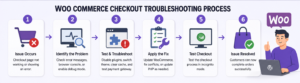
A WooCommerce Checkout Page Not Working issue can directly impact your sales, but in most cases it can be resolved by following a structured troubleshooting process. Start with the simplest fixes, such as updating WooCommerce, disabling conflicting plugins, testing a default theme, and clearing caches. If the issue persists, review your system status, enable debug mode, and check PHP compatibility.
Regular maintenance, timely updates, and reliable backups will help keep your checkout process stable and ensure customers can complete purchases without interruptions.