

Introduction


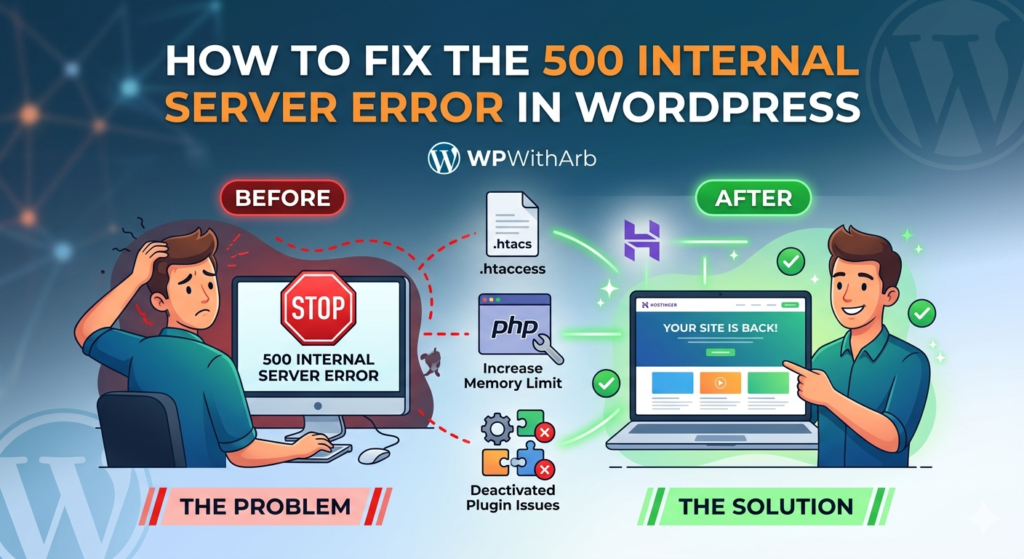
Few WordPress errors are as frustrating as the 500 Internal Server Error. One moment your website is working perfectly, and the next, visitors are greeted with a blank page or a generic error message.
The biggest challenge is that the error doesn’t clearly explain what’s wrong. It simply tells you that something unexpected happened on the server. That means you’ll need to troubleshoot systematically until you find the real cause.
The good news is that this error is usually fixable without rebuilding your website. Whether it’s caused by a corrupted .htaccess file, a faulty plugin, exhausted PHP memory, or a server configuration issue, this guide walks you through every proven solution step by step.
What Is the 500 Internal Server Error?
A 500 Internal Server Error is an HTTP status code indicating that the web server encountered an unexpected condition and couldn’t complete your request.
Instead of showing your website, you may see messages like:
- 500 Internal Server Error
- HTTP Error 500
- 500 – Internal Server Error
- This page isn’t working
- The website cannot display the page
- There has been a critical error on this website
Unlike a 404 Not Found error, a 500 error doesn’t point to one specific problem. It simply means the server failed while processing the request.
What Causes the 500 Internal Server Error in WordPress?
Several issues can trigger this error.
The most common causes include:
- Corrupted
.htaccessfile - Faulty WordPress plugin
- Broken or incompatible theme
- PHP memory limit exhausted
- Incorrect file or folder permissions
- Corrupted WordPress core files
- PHP version incompatibility
- Server configuration problems
- Hosting resource limitations
- Failed automatic WordPress update
Fortunately, most of these problems can be diagnosed in a few minutes.
Before You Start Troubleshooting
Before making any changes:
- Create a complete website backup
- Back up your database
- Download your website files
- Note any recent changes such as plugin installations or theme updates
If your hosting provider offers automatic backups, restore points can save a lot of time if something goes wrong.
Step 1: Refresh Your Website
Sometimes the error is temporary.
Before changing anything:
- Refresh the page.
- Open your site in an Incognito window.
- Try another browser.
- Check your website from another device.
If the problem disappears, it may have been a temporary server issue.
Step 2: Clear Your Browser and Website Cache
Cached files sometimes continue displaying an old error even after the issue has been fixed.
Clear:
- Browser cache
- WordPress cache plugin
- CDN cache (if using Cloudflare or another CDN)
- Hosting cache
Then reload your website.
Step 3: Check Your .htaccess File
One of the most common causes is a corrupted .htaccess file.
Rename the Existing File
Using FTP or your hosting File Manager:
- Open your WordPress root folder.
- Locate:
.htaccess
- Rename it to:
.htaccess_old
Now visit your website.
If the site loads normally, you’ve found the problem.
Create a New .htaccess File
Go to:
WordPress Dashboard → Settings → Permalinks
Simply click:
Save Changes
WordPress automatically generates a fresh .htaccess file.
Step 4: Disable All Plugins


A single incompatible plugin can crash the entire website.
If you can’t access the WordPress dashboard:
- Open:
wp-content
- Rename:
plugins
to
plugins_old
Now visit your website.
If the Website Works
The issue is a plugin.
Rename the folder back to:
plugins
Then rename each plugin folder individually until the error returns.
The last plugin enabled is the faulty one.
Step 5: Switch to a Default WordPress Theme
Themes can also trigger server errors after updates.
Rename your active theme folder inside:
wp-content/themes/
WordPress will automatically switch to a default theme such as:
- Twenty Twenty-Four
- Twenty Twenty-Five
- Twenty Twenty-Six
If the error disappears, your theme needs updating or replacing.
Step 6: Increase the PHP Memory Limit
Large plugins and resource-intensive themes may exceed your PHP memory allocation.
Open:
wp-config.php
Add this line before:
/* That's all, stop editing! */
define('WP_MEMORY_LIMIT', '256M');
If your hosting provider allows it, this increases available memory.
If the error remains, continue troubleshooting.
Step 7: Enable WordPress Debug Mode
Debug Mode provides valuable error details.
Edit:
wp-config.php
Replace:
define('WP_DEBUG', false);
with:
define('WP_DEBUG', true);
define('WP_DEBUG_LOG', true);
define('WP_DEBUG_DISPLAY', false);
Now reload your website.
Check:
wp-content/debug.log
The log often identifies:
- Broken plugins
- PHP syntax errors
- Missing files
- Database issues
- Theme problems
Step 8: Re-upload WordPress Core Files
Sometimes core files become corrupted.
Download a fresh copy of WordPress from the official website.
Upload everything except:
- wp-content
- wp-config.php
Replace only the core files.
This does not delete your content.
Step 9: Verify File Permissions
Incorrect permissions frequently cause server errors.
Recommended permissions:
| Item | Permission |
|---|---|
| Folders | 755 |
| Files | 644 |
| wp-config.php | 600 or 640 (depending on hosting) |
Avoid using:
777
This creates serious security risks.
Step 10: Check the PHP Version
Older plugins may fail under newer PHP versions, while newer plugins may require updated PHP.
Recommended versions typically include:
- PHP 8.1
- PHP 8.2
- PHP 8.3 (if supported by all plugins)
If the error started immediately after changing PHP versions, switch back temporarily and test again.
Step 11: Review the Server Error Logs
Server logs often reveal the exact problem.
Common locations include:
error_log
or
logs/error.log
Look for entries mentioning:
- Fatal PHP errors
- Missing files
- Memory exhaustion
- Permission denied
- Timeout errors
These logs dramatically reduce troubleshooting time.
Step 12: Ask Your Hosting Provider
If none of the previous solutions work, the problem may be server-side.
Possible hosting issues include:
- Apache configuration errors
- NGINX configuration problems
- PHP-FPM failures
- Resource limits
- CPU throttling
- Temporary outages
Most hosting companies can quickly identify these issues from server logs.
How to Fix the Error After Installing a Plugin
If the problem appeared immediately after installing a plugin:
- Disable the plugin.
- Clear all caches.
- Update the plugin.
- Check compatibility with your WordPress version.
- Contact the plugin developer if needed.
Never continue using a plugin that repeatedly crashes your website.
How to Fix the Error After Updating WordPress
Updates occasionally fail because of interrupted uploads.
Try:
- Re-upload WordPress core files
- Disable plugins
- Clear cache
- Regenerate
.htaccess - Repair the database if necessary
Most update-related errors are easy to recover from.
Common Mistakes to Avoid
Many users accidentally make the problem worse.
Avoid these mistakes:
- Deleting the database
- Changing random files
- Setting permissions to 777
- Editing files without backups
- Deleting the entire
wp-contentfolder - Installing multiple “repair” plugins simultaneously
Work through one solution at a time so you can identify the actual cause.
Best Practices to Prevent the 500 Internal Server Error
You can reduce the chances of seeing this error again by following a few maintenance habits.
Keep WordPress Updated
Always update:
- WordPress core
- Plugins
- Themes
Outdated software often leads to compatibility problems.
Use Reliable Plugins
Install plugins only from trusted developers.
Delete unused plugins instead of simply deactivating them.
Choose Quality Hosting
Cheap hosting plans often have:
- Low memory limits
- CPU restrictions
- Poor server optimization
Reliable hosting significantly reduces unexpected server errors.
Schedule Automatic Backups
A daily backup lets you restore your website within minutes if something goes wrong.
Monitor Website Health
Regularly check:
- PHP version
- Disk usage
- Error logs
- Security scans
- Website uptime
Small issues are much easier to fix before they become major outages.
Frequently Asked Questions
Is the 500 Internal Server Error caused by WordPress?
Not always.
The issue may come from WordPress, your hosting server, PHP configuration, or a plugin or theme conflict.
Will I lose my website?
Usually not.
Most fixes involve repairing configuration files rather than deleting content.
Can shared hosting cause this error?
Yes.
Shared hosting accounts sometimes exceed memory or CPU limits, which can trigger server errors during traffic spikes or heavy processes.
Can a plugin update cause a 500 error?
Absolutely.
A plugin update can introduce compatibility issues with your current WordPress version, theme, or PHP version.
How long does it take to fix?
Most websites can be repaired within 15–60 minutes, depending on the root cause.
Final Thoughts
The 500 Internal Server Error can seem intimidating because it provides so little information, but in most cases the underlying issue is straightforward to identify. By starting with the simplest fixes—such as clearing caches, regenerating the .htaccess file, and disabling plugins—you can often restore your website quickly. If those steps don’t resolve the problem, checking PHP memory limits, reviewing debug logs, verifying file permissions, and consulting your hosting provider will usually uncover the cause.
To further enhance your site’s resilience against the 500 Internal Server Error, consider implementing a staging environment for testing updates before applying them to your live site. This precaution allows you to identify potential issues without affecting your users. Additionally, utilizing a content delivery network (CDN) can optimize load times and reduce server strain, contributing to a smoother user experience. By adopting these strategies, you not only safeguard your site from unexpected disruptions but also foster a more robust online presence.

Pingback: How to Speed Up WordPress Using LiteSpeed Cache | Hostinger
Pingback: Error Establishing a Database Connection – 12 Easy Ways fix
Pingback: Elementor Stuck on Loading Screen: 9 Proven Fixes work 2026